ANOTHER MACHINES / ABLETON LIVE 12
LIVE 12 SKINSVOL.01
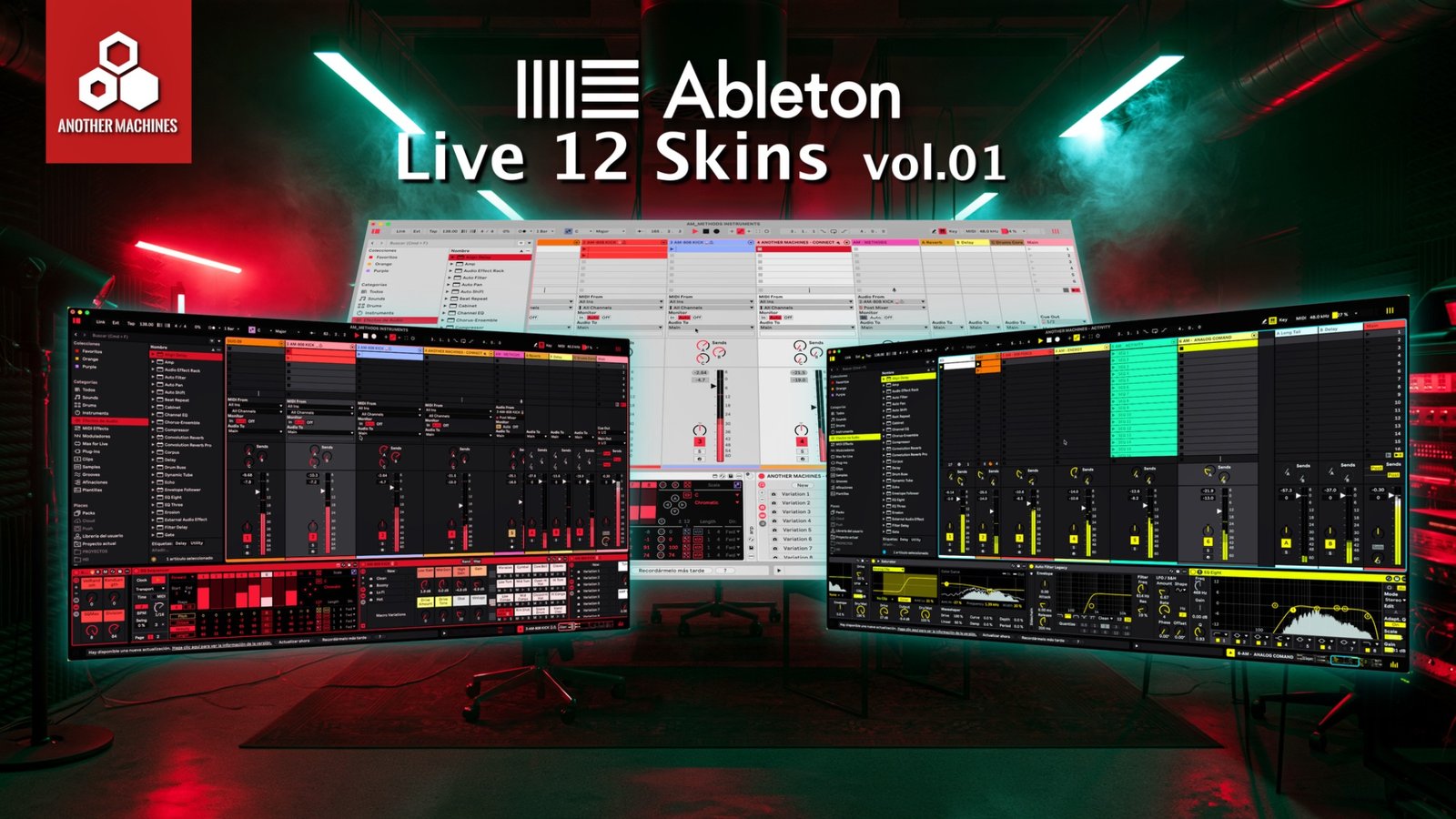
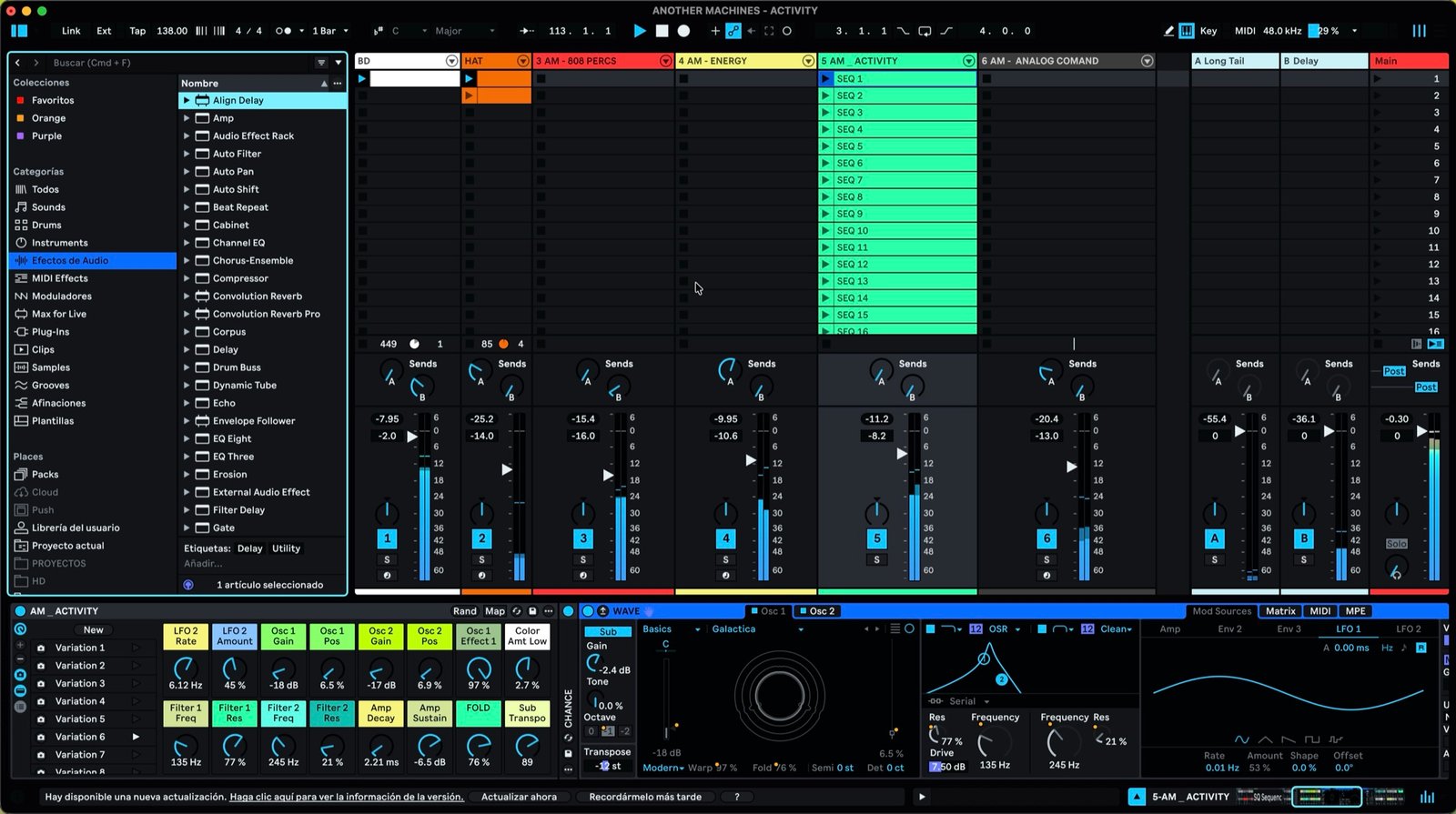
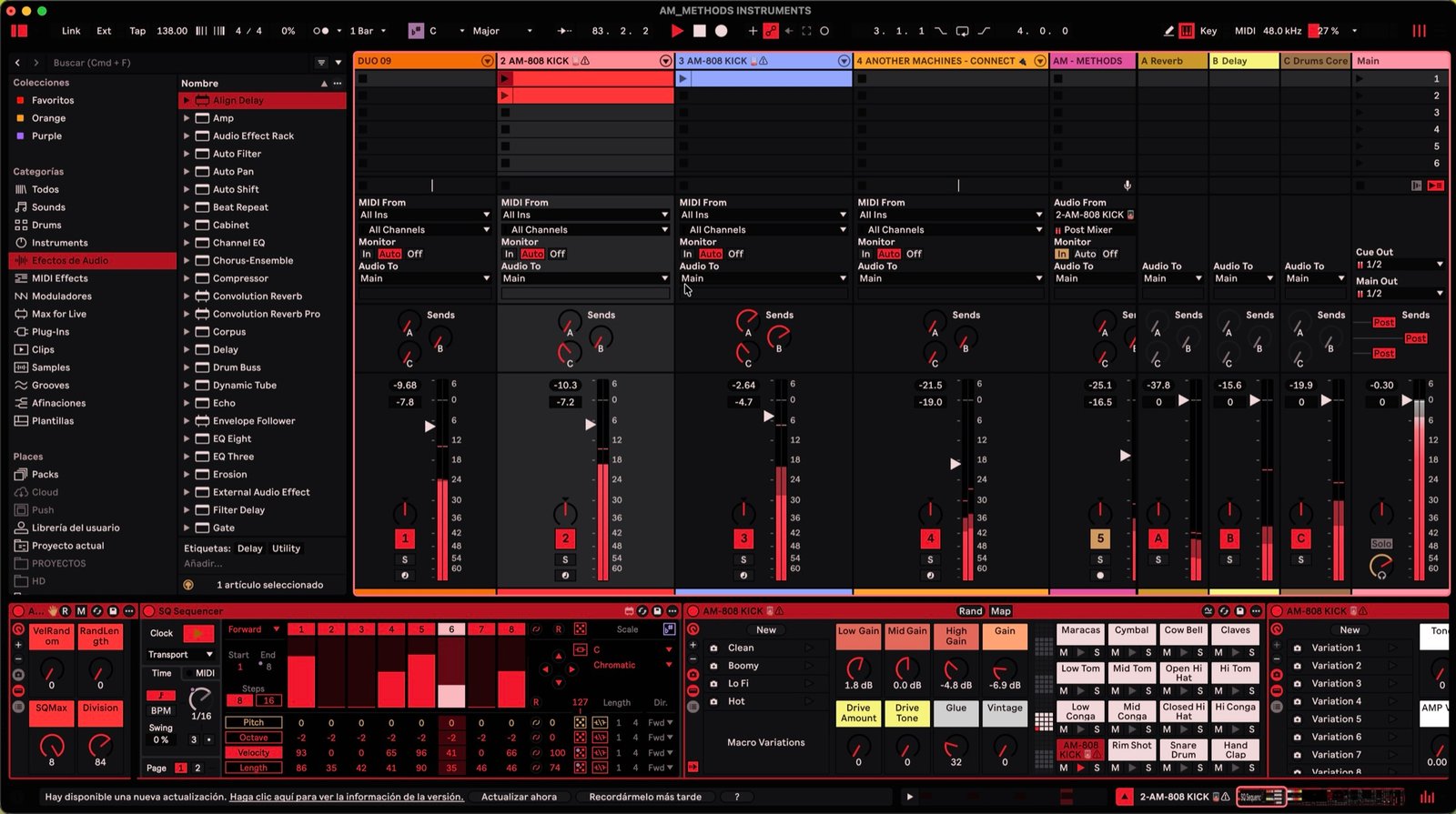
22 custom .ask skins for Ableton Live 12. Distinct color systems, custom meter palettes and production-focused contrast.
Buy on Gumroad€8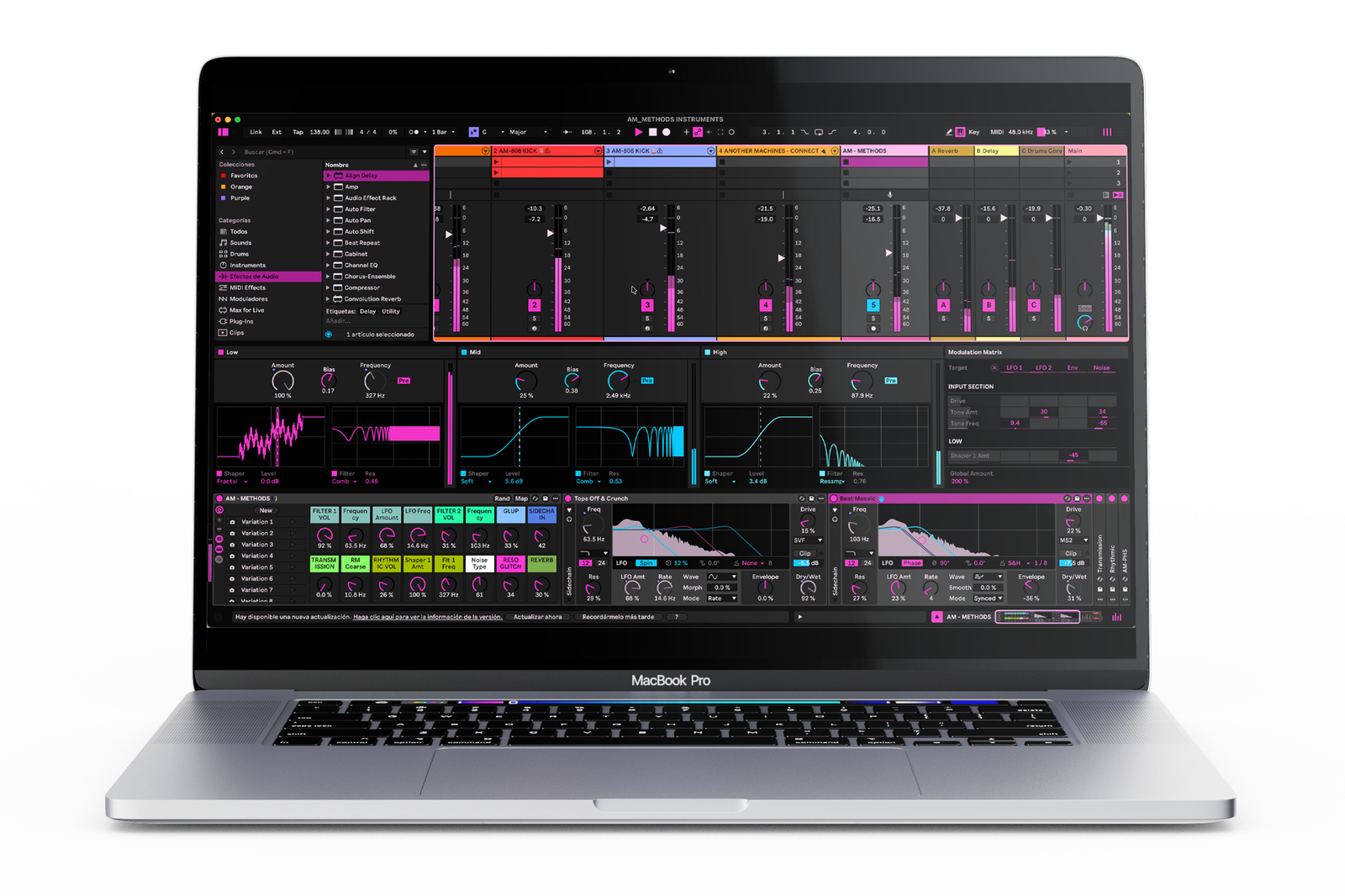
One working environment.
Twenty-two color systems.
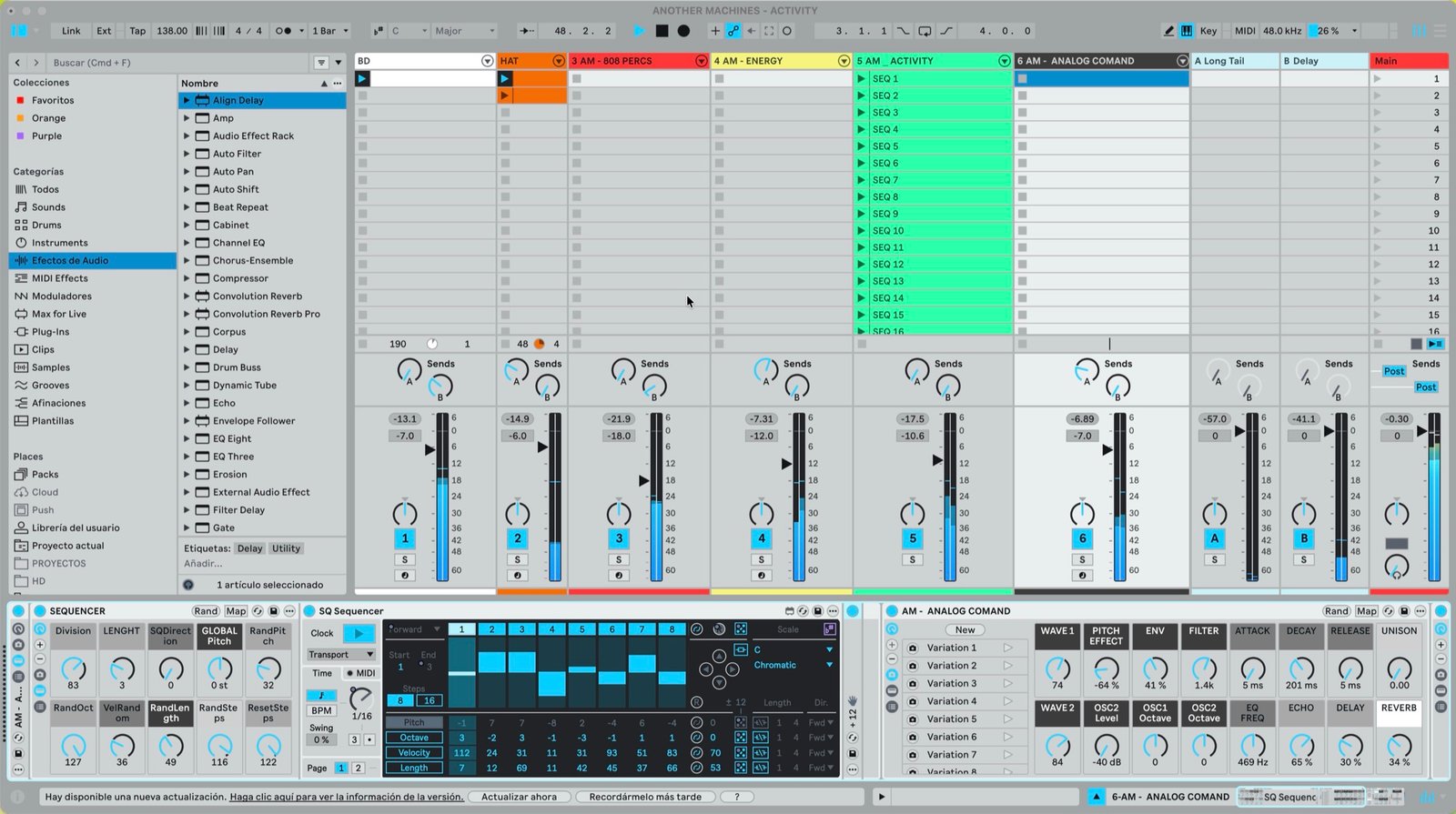
All 22 skins.
Every image shows the actual Ableton Live 12 interface included in the collection.
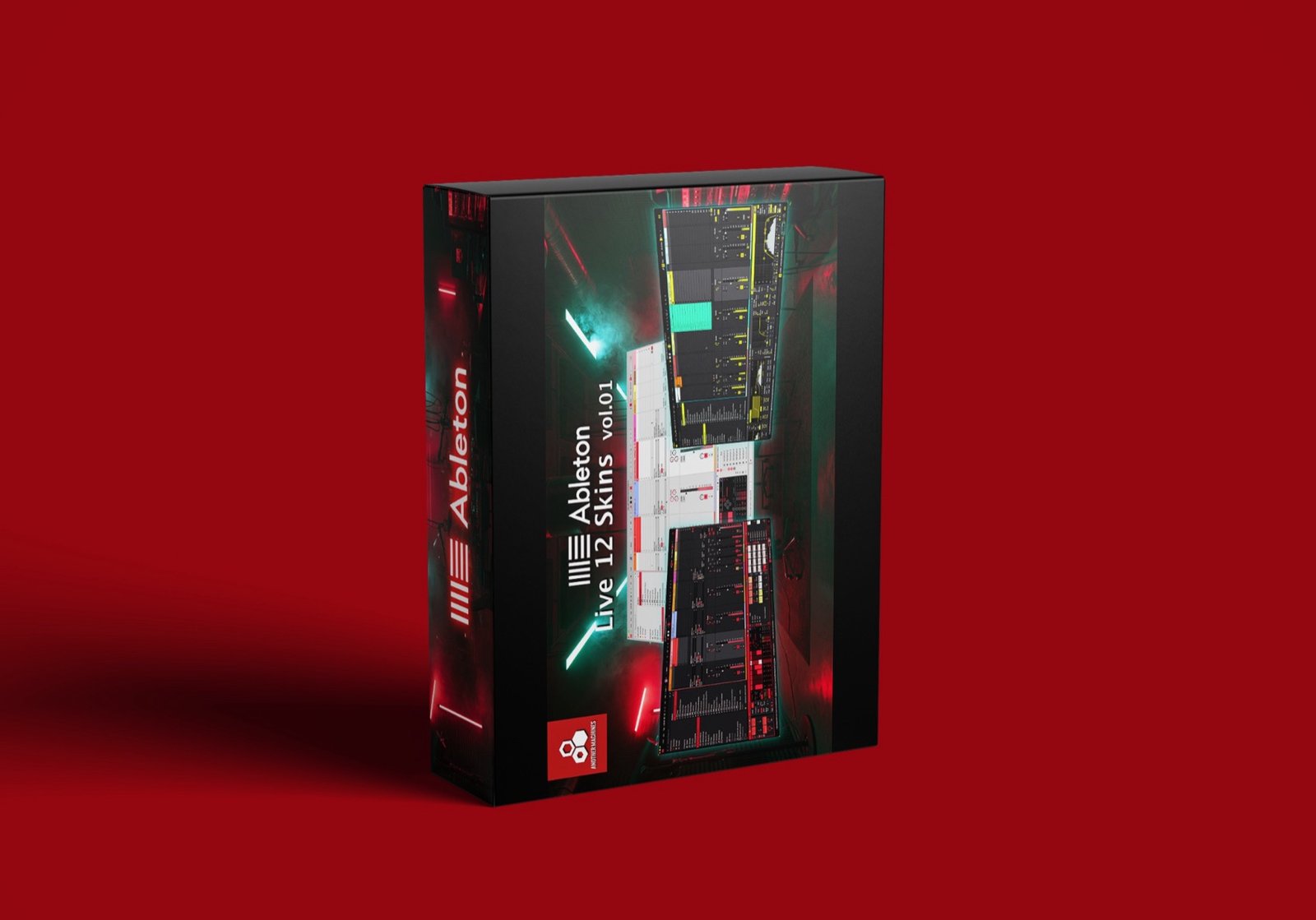
Live 12 Skins
Vol.01
Twenty-two custom themes supplied as .ask files.
€8What you get.
- 22 Ableton Live 12 skins.ask files
- Custom interface palettesIncluding meter colors
- Installation guidemacOS and Windows
- Digital deliveryThrough Gumroad
Compatibility.
Compatible with Ableton Live 12 Intro, Standard and Suite.
macOS and Windows.
Live 12 only. Not compatible with Live 11 or earlier versions.
Installation.
Close Ableton Live before copying the skin files.
macOS +
- Close Ableton Live 12.
- Open Applications and find your Live 12 app.
- Control-click the app and choose Show Package Contents.
- Open
Contents/App-Resources/Themes. - Copy the included .ask files into the Themes folder.
- Open Live 12 and select a skin in Settings, Theme & Colors.
Windows +
- Close Ableton Live 12.
- Open File Explorer and enable Hidden items if required.
- Open
C:\ProgramData\Ableton\Live 12\Resources\Themes. - Use the edition-specific Live 12 folder when applicable.
- Copy the included .ask files into the Themes folder.
- Open Live 12 and select a skin in Settings, Theme & Colors.