EOLIA 1.0.0 · User Manual
User Manual
Everything about EOLIA for macOS, iPhone and iPad. Also available as PDF, with a Quick Start Guide.
01 · Welcome
A reverb you can see — and play.
EOLIA is a spatial reverb built around a living universe. Seven acoustic engines give you seven different kinds of space; GENESIS moves that space with your music; an eleven-speaker room and a binaural 3D mode place it around and above the listener — on any track, in any host, on speakers or headphones.
Everything you see in the window is drawn from the reverb itself: the brightness of the disk is the tail, the dust is the diffusion, the shock rings are transients, the turning of the scene is where the sound is. And every region of the universe can be played with the mouse or with your fingers.
What is included
- EOLIA for macOS: Audio Unit and VST3 plug-ins (Universal: Apple Silicon and Intel).
- EOLIA for iPhone and iPad: an AUv3 Audio Effect and the EOLIA app (sold separately on the App Store).
- 43 factory presets in nine categories, plus your own user presets.
- This manual and the Quick Start Guide.
System requirements
| Platform | Requirements |
|---|---|
| macOS | macOS 11 Big Sur or later · Apple Silicon or Intel · an Audio Unit or VST3 host · a Metal-capable Mac |
| iPhone / iPad | iOS 16 or iPadOS 16 or later · an AUv3 host such as AUM, Logic Pro for iPad, Cubasis, Loopy Pro or GarageBand |
02 · Installation
Installation
macOS
Open the EOLIA disk image and double-click Install EOLIA.pkg. The installer places the plug-ins in the system plug-in folders for every user of the Mac. Restart your host — or rescan plug-ins — and EOLIA appears under Another Machines.
| Item | Location |
|---|---|
| VST3 | /Library/Audio/Plug-Ins/VST3/EOLIA.vst3 |
| Audio Unit | /Library/Audio/Plug-Ins/Components/EOLIA.component |
| User presets | ~/Library/Application Support/Another Machines/EOLIA/Presets |
If the package cannot complete, run Install EOLIA.command from the disk image: it installs system-wide, or into your user Library if administrator access is declined. To remove EOLIA, run Uninstall EOLIA.command; your user presets are kept.
killall -9 AudioComponentRegistrar in Terminal and reopen it.iPhone and iPad
Install EOLIA from the App Store, then open your host. EOLIA is listed with the Audio Unit extensions under Another Machines. In AUM, tap an insert slot of an audio channel, choose Audio Unit Extensions, then Another Machines → EOLIA.
The EOLIA app
The EOLIA app opens the same instrument full screen. With headphones, Bluetooth audio or an audio interface connected, it plays the microphone or your input live through the space. On the built-in speaker the input stays silent, so it can never feed back.
03 · Interface
A tour of the interface
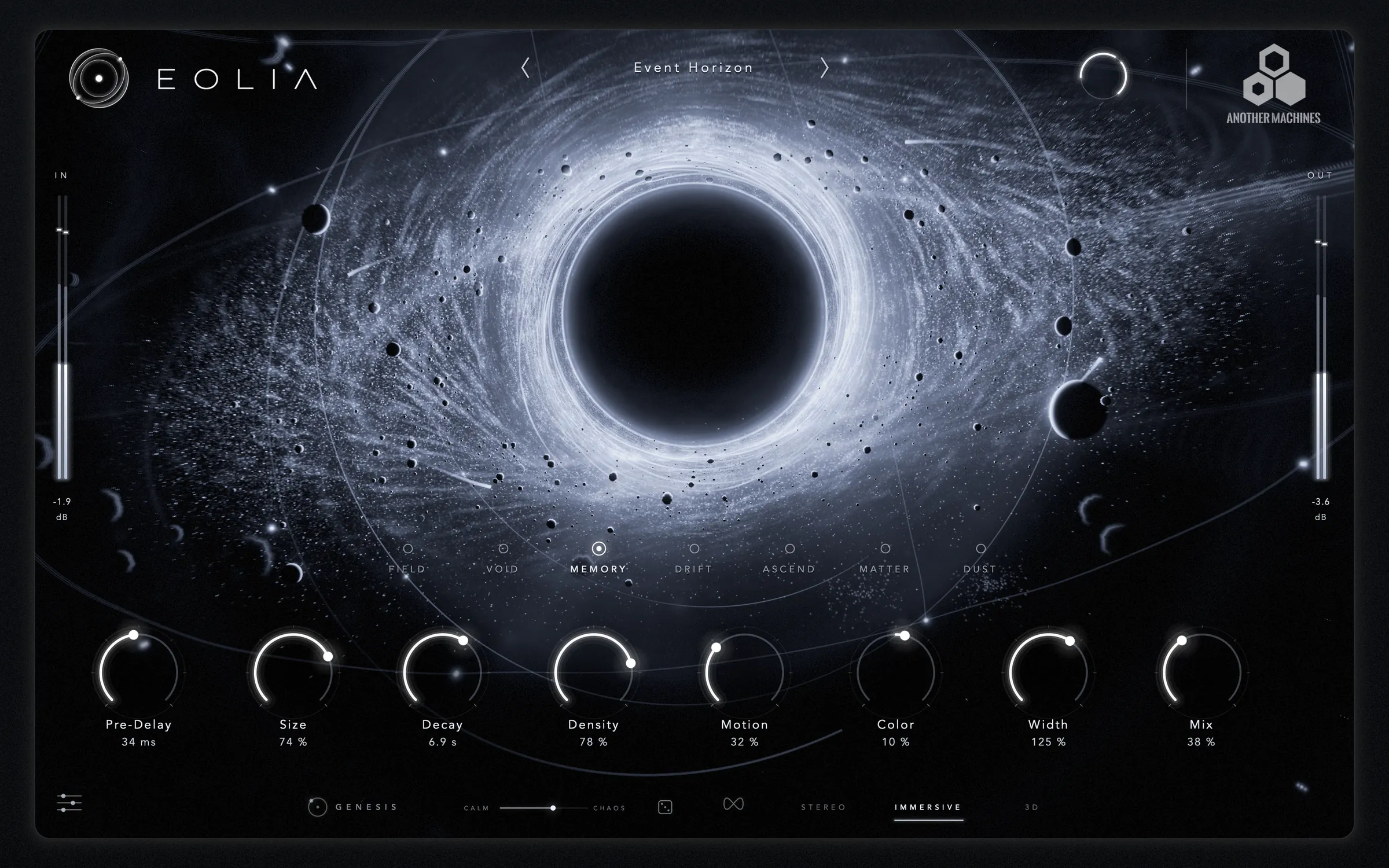 123456789101112
The window can be resized freely on the Mac; on iPhone and iPad it fills the screen and switches between a landscape layout and a dedicated portrait layout when you turn the device.
04 · Engines
The seven engines
Choose an engine with the row of seven names under the universe. Engines are independent acoustic networks, not variations of one algorithm. They are loudness-matched, so you can compare them by ear, and changing engine never clicks: the old tail releases under the new one while the universe changes its laws.
FIELD — The reference space
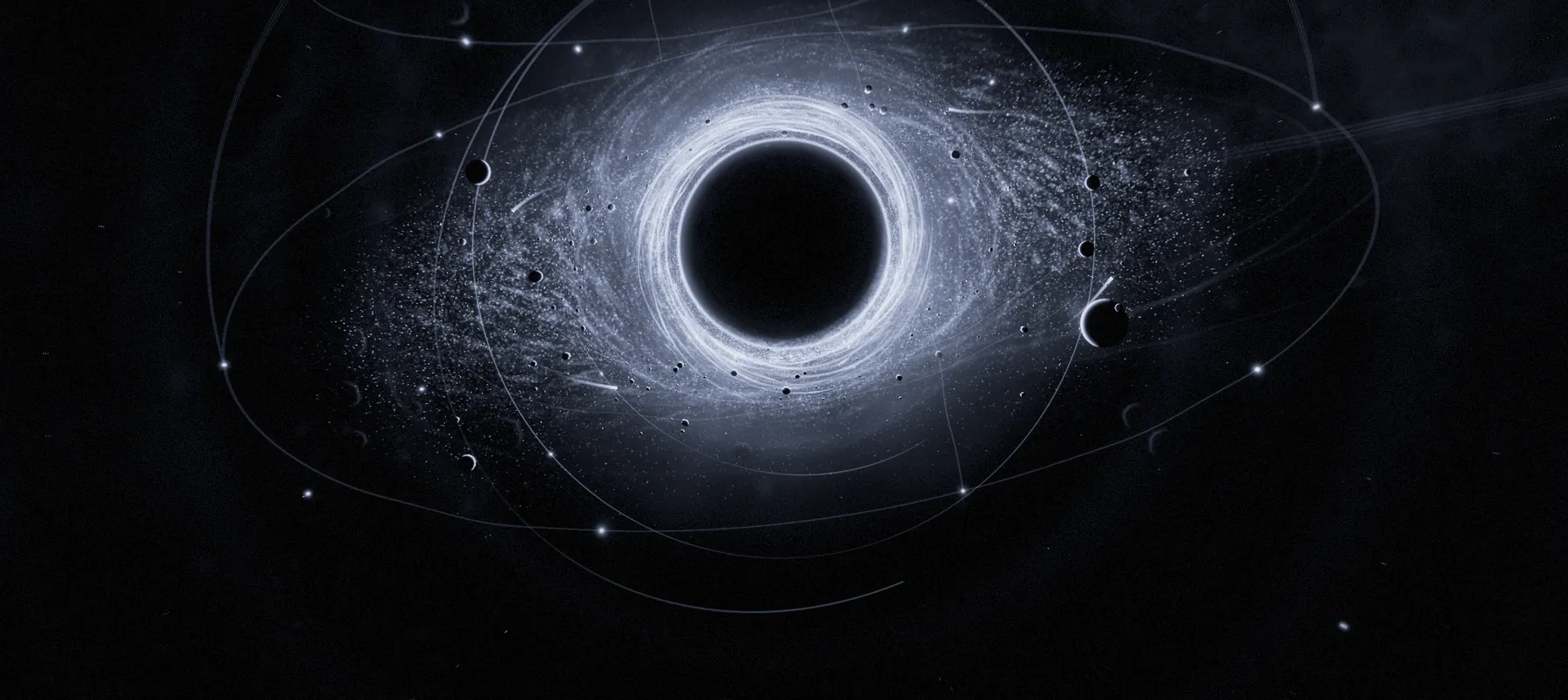
A sixteen-node acoustic network that keeps every node alive through the whole tail: clean, even and wide, with a smooth build-up and no unwanted colouration.
Try it on: Vocals, piano, acoustic instruments, mix buses — anything that must sound true.
VOID — Impossible scale
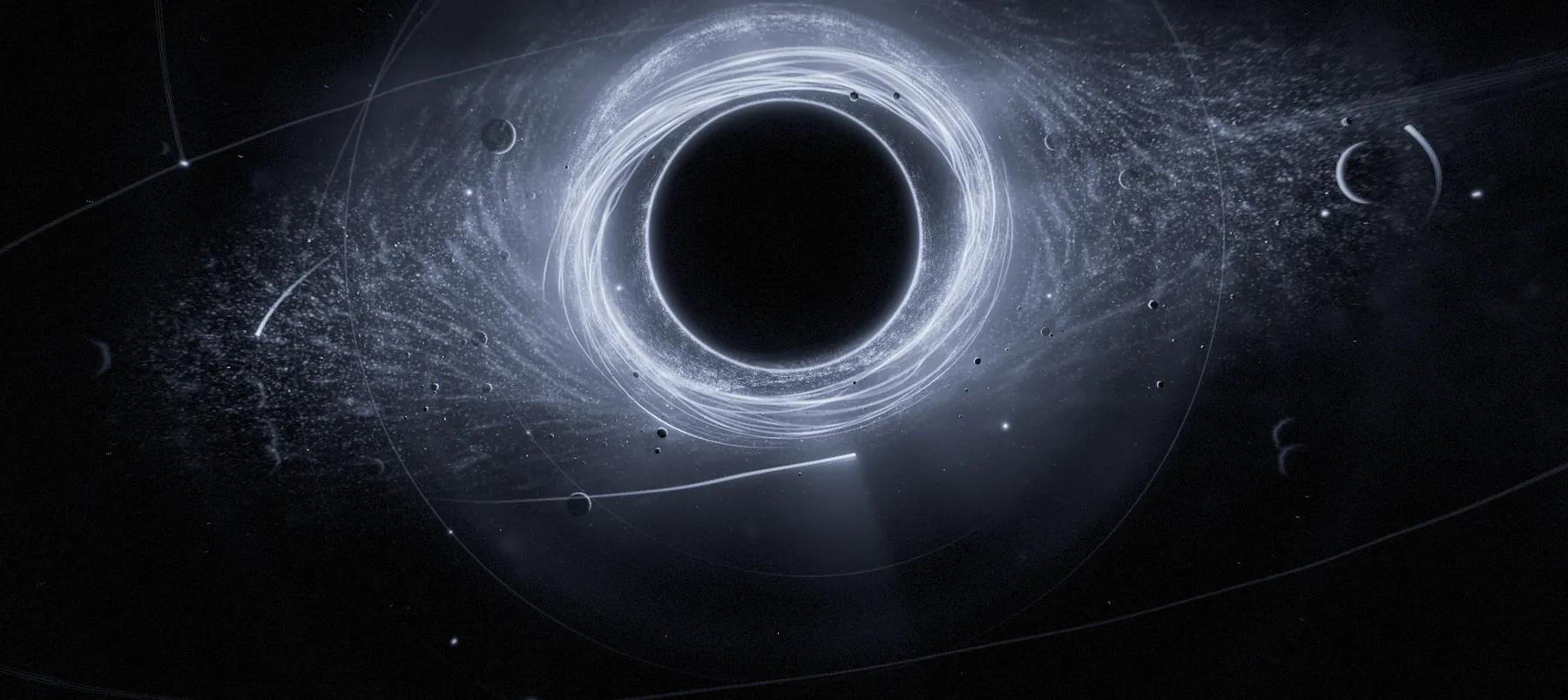
Two spatial chambers exchange their complete field through a lossless junction. The tail opens after the sound — dark, distant and enormous — instead of covering it.
Try it on: Pads, cinematic sound design, ambient textures, huge sends.
MEMORY — A space that remembers

Current, history and rear layers. What you play returns as tape-soft recollections, ping-pong echoes that darken with every pass and reversed fragments of the recent past.
Try it on: Guitars, synths, vocals with character; the EOLIA signature sound.
DRIFT — A room that reroutes itself

Four layers of lossless junctions move independently, so the tail wanders across the image without pumping or detuning.
Try it on: Loops, leads, chords — anything that should keep moving.
ASCEND — Harmonic light
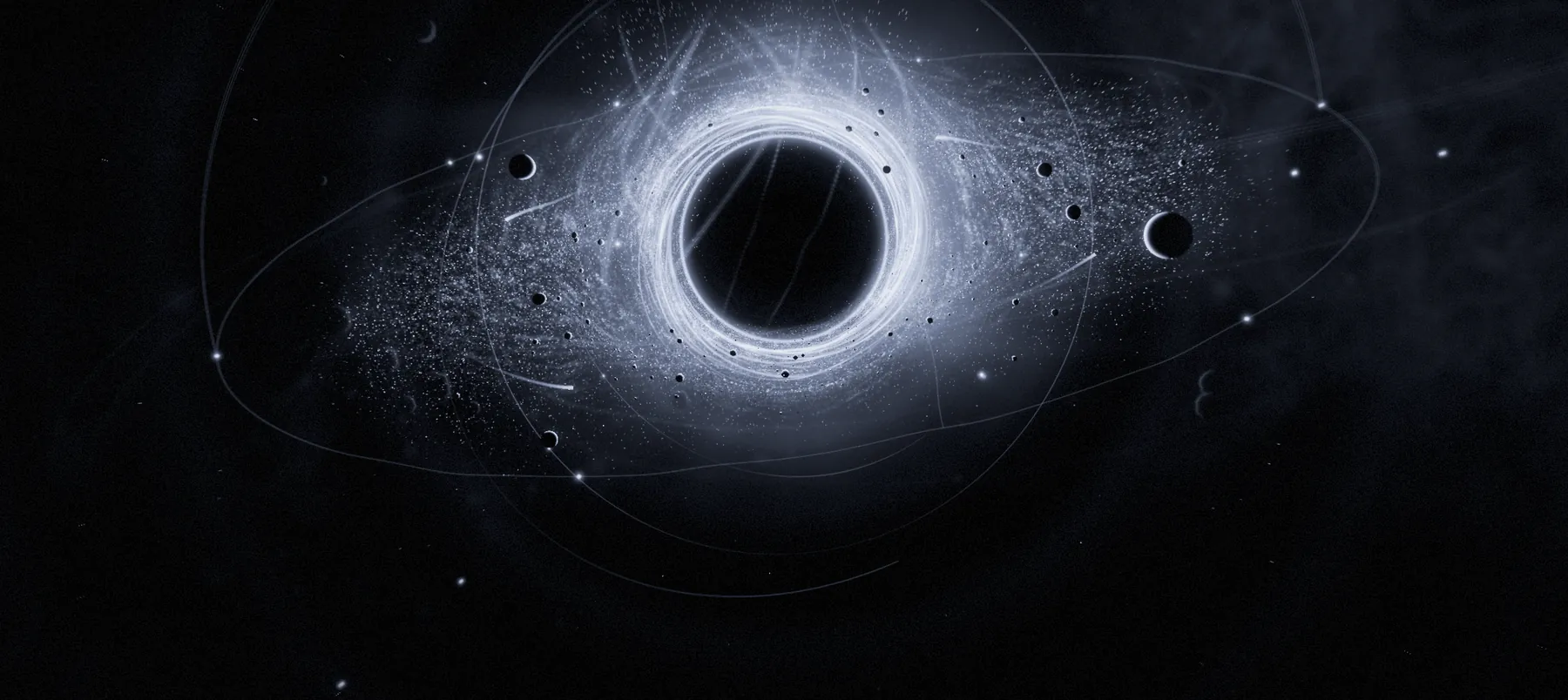
A spectral shimmer climbs in fifths and octaves while three resonances rise through the tail. Space Y sets the interval; COLOR opens it into air.
Try it on: Shimmer pads, choir-like vocals, cinematic swells.
MATTER — Physical mass
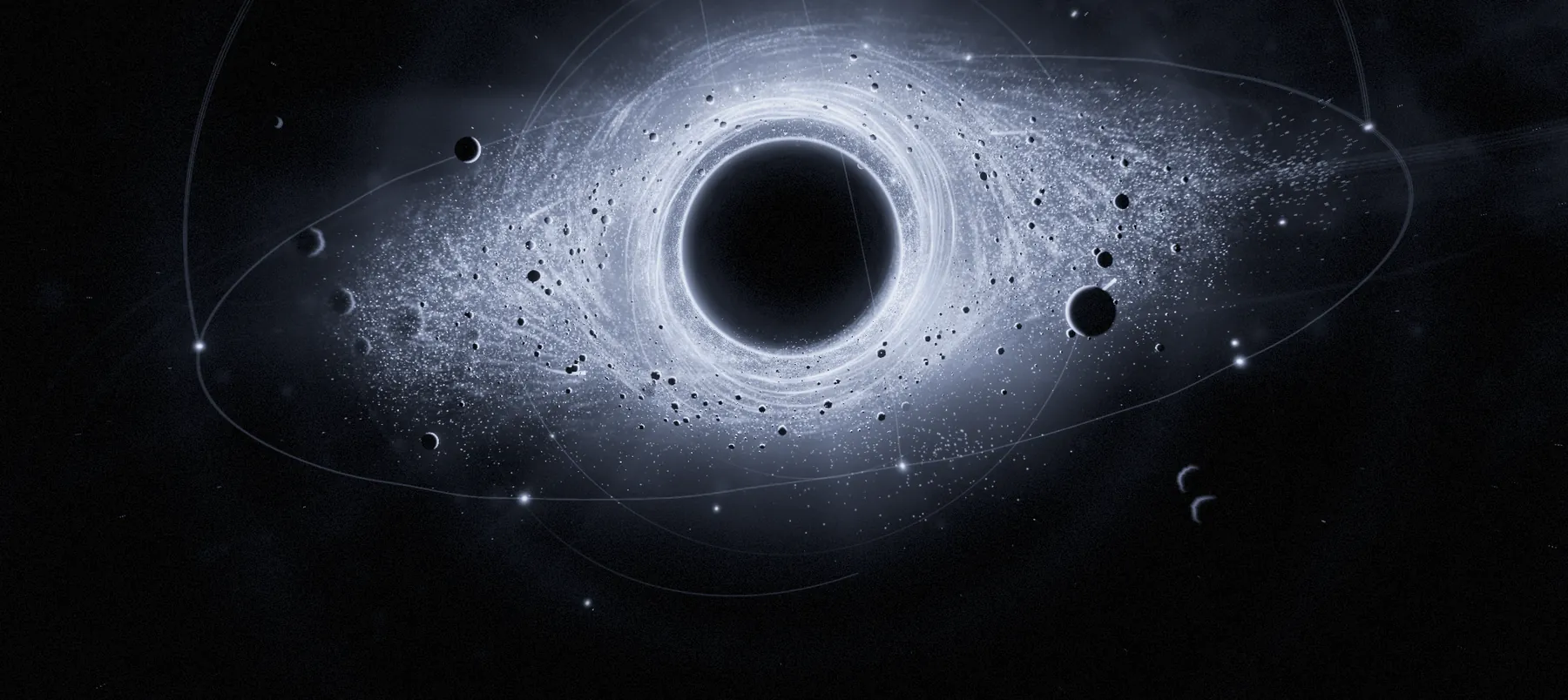
Twelve short body paths scatter like a dense material. Transients hit harder and break into a heavy, close cloud.
Try it on: Drums, percussion, impacts, trailer hits.
DUST — A cloud of grains in space
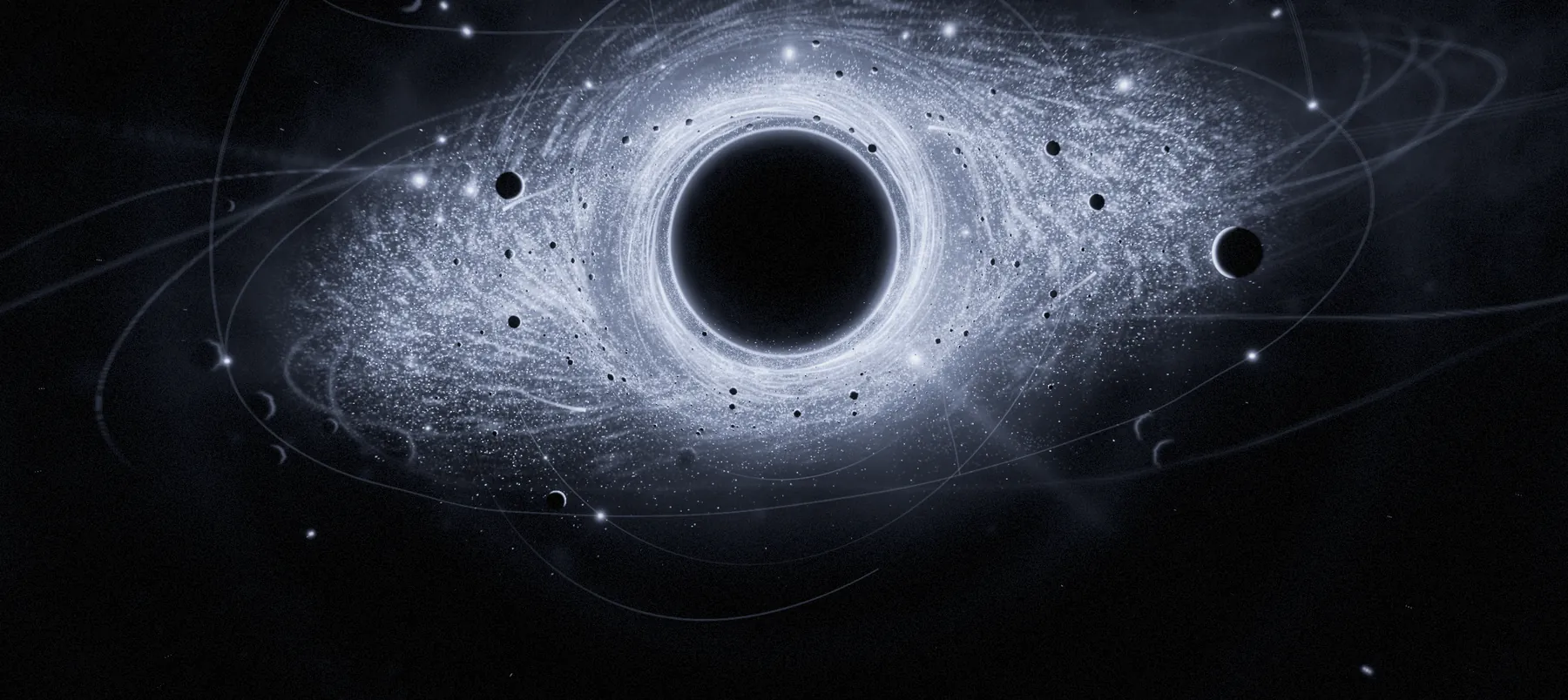
An eight-second memory played back as up to 48 grains, each from its own point around you, feeding an evolving diffuse tail.
Try it on: Vocal mist, granular pads, rhythmic dust on drums, frozen textures.
05 · Controls
The main controls
Eight controls shape every engine. Drag a knob vertically, scroll over it, or double-click to return to its default. Hold SHIFT for fine adjustment.
| Control | Range | What it does |
|---|---|---|
| Pre-Delay | 0–250 ms | Time before the space answers. Longer pre-delay keeps the source in front of its reverb. |
| Size | 0–100 % | The size of the space and the spacing of its reflections. In DUST: the length of the grains (15 ms to almost 1 s). |
| Decay | 0.2–60 s | How long the tail lasts. In DUST: the tail and how much of it returns to the grain memory. |
| Density | 0–100 % | How quickly the reflections become a smooth tail. In DUST: grains per second (2–120). |
| Motion | 0–100 % | Movement inside the tail. In DUST: how far back in time grains reach, how freely they move and, above 55 %, reversed grains. |
| Color | −100 to +100 % | Darker to brighter. In DUST: the grain interval — octave down, fifth below, natural, fifths above, octaves above. |
| Width | 0–200 % | Stereo width of the wet signal. In DUST: from a narrow beam in front to grains all around. |
| Mix | 0–100 % | Balance between the dry source and the space. Use 100 % on a send. |
06 · Space
Space, immersion and 3D
The listener
Three spatial parameters place you inside the space: Space X (from left to right), Space Y (near to far) and Space Z (the scale of the space). Drag the core to move X and Y; scroll, pinch or OPTION-drag for Z.
Space mode
| Mode | What you hear |
|---|---|
| STEREO | A classic stereo reverb image between two speakers. |
| IMMERSIVE | The tail is spread over eleven virtual speakers — 7.1.4: seven around, four above — and rendered to stereo. Works on speakers and headphones in every host; no Atmos setup is needed. |
| 3D | Binaural rendering for headphones: interaural time, head shadow and elevation cues place the room around and above you. Any headphones; no head tracking. |
Orbit
Orbit turns the whole tail around the listener, clockwise or counter-clockwise, from a slow drift to a fast spin. Set it in Settings, spin the ring, or twist with two fingers. Each engine also has its own gentle movement; Orbit adds yours on top.
07 · Gestures
Playing the universe
Every region of the scene plays a group of parameters. Hover over a region on the Mac to see what it plays; double-click a region to reset its parameters smoothly.
| Region | Gesture | Plays |
|---|---|---|
| Core | Drag · throw | Space X and Y. Release while moving and the listener keeps drifting, bouncing softly off the walls. |
| Core | Scroll · pinch · Option-drag | Space Z (scale). |
| Core | Hold | Freeze on or off. |
| Ring | Drag outward or inward | Size. |
| Ring | Spin | Orbit — the tail keeps turning after you let go. Option-spin: Motion. |
| Belt | Sideways · up and down | Width · Density. |
| Open space | Up and down · sideways | Decay · Color. |
| Open space | Hold still | Gravity: the sound is pulled toward your hand and springs home when you let go. |
| Open space (DUST) | Touch and drag | Plays the grain cloud: distance from the core = how far back in time (now to 6 s), angle = where the grains sound. |
| Two fingers | Pinch · move · twist | Scale · turn the view · spin the space (Orbit). |
| Anywhere | Cmd-drag or right-drag (Mac) | Turn the view of the universe (visual only). |
Keyboard
| Key | Action |
|---|---|
| ← → | Nudge Space X |
| ↑ ↓ | Nudge Space Y |
| Option + ↑ ↓ | Nudge Space Z |
| Shift + arrows | Finer steps |
| Esc | Close the preset browser, settings or About; cancel drawing a path |
08 · GENESIS
GENESIS
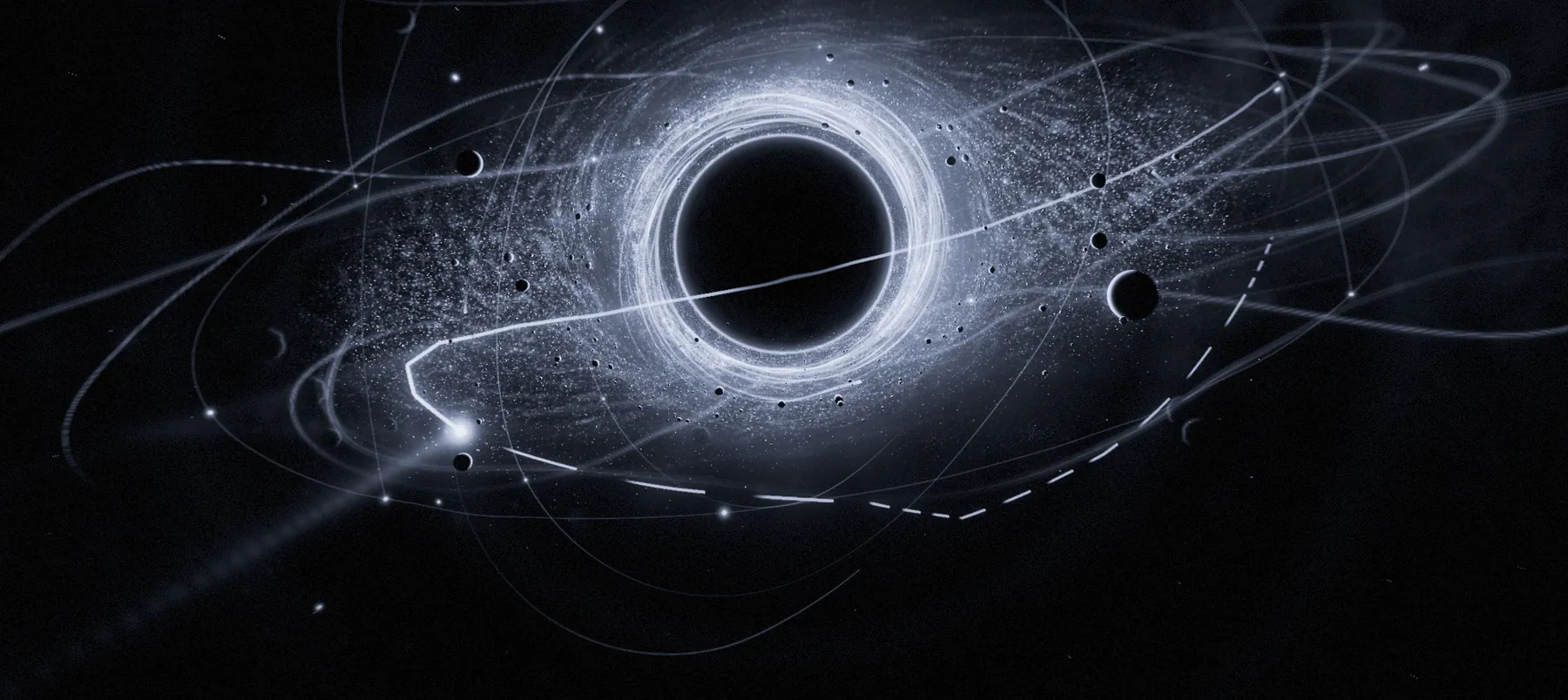
GENESIS is a generative spatial choreographer. Switch it on in the bar under the controls and it listens to the music, recognises six kinds of moment — silence, calm, groove, build, drop and break — and answers them with figures that move the sound around you: BREATHE, ORBIT, SPIRAL, PENDULUM, FIGURE 8, FALL, ASCENSION, BURST, SUSPEND, SCATTER.
| Control | What it does |
|---|---|
| GENESIS | Switches the choreography on or off. Movements fade in and out musically. |
| CALM — CHAOS | Intensity: from subtle drifting to wide, fast, dramatic movement. Touching it also switches GENESIS on. |
| Dice | A new choreography (a new seed). With a drawn path, gives the path a new turn or mirror image. |
| PATH (∞) | Draw a path. Tap, then draw around the core; tap again while drawing to cancel. When a path is playing, tap to remove it. |
Draw the space
Tap PATH and draw a stroke around the core: below the core (nearer to you) is in front of you, above it is behind you, and the distance from the core is the distance of the sound. When you lift your finger or the mouse, the stroke becomes a loop of one, two, four or eight bars — chosen from how long you took to draw it and the host tempo — and GENESIS replays it in time with the track. At CALM it follows your drawing exactly; toward CHAOS, every repetition rotates and breathes a little.
09 · DUST
DUST in depth
DUST records the incoming audio into an eight-second memory. Up to forty-eight grains read from it — forwards or reversed, at the interval set by COLOR — and each grain sounds from its own point of the immersive room. The grains feed a wide, diffuse tail, and part of that tail returns to the memory, so the cloud keeps evolving.
Freeze
Hold the core (or use FREEZE in Settings) and the memory stops recording. The grains go on playing what was heard, indefinitely, while you shape them.
Play the cloud
With DUST selected, touch the open space: the distance from the core chooses when the grains come from (now to six seconds ago) and the angle chooses where they sound. Lift your finger and the cloud returns to its own scatter.
In time
When your host is playing and MOTION is below 20 %, grains are triggered on a note grid derived from DENSITY and the host tempo — quarter notes to 32nd notes.
10 · Smart Listen
Smart Listen
Click or tap the EOLIA emblem and play your source. EOLIA waits for the sound (up to 12 seconds), listens to two bars, recognises what it hears — voice, kick, snare, clap, tom, percussion, hats, bass, synth, pad, drum loop or full mix — and sets the engine and the eight controls for it. The ring inside the singularity shows the progress and, at the end, what was heard, the engine chosen and the decay time.
- With the host playing, pre-delay lands on a note value and the tail on a musical length.
- If MIX is at 100 % (a send), Smart Listen leaves the mix alone.
- Click the emblem again to cancel while it listens.
- Analysis happens on your device; nothing is recorded or uploaded.
11 · Settings
Settings and sound tools
Open Settings with the sliders icon in the bottom-left corner.
| Setting | What it does |
|---|---|
| Duck | Lowers the wet signal while the source plays, so the tail breathes around it. |
| Low Cut | Removes low frequencies from the wet signal only (20 Hz – 1 kHz; Off at minimum). |
| High Cut | Removes high frequencies from the wet signal only (1 – 20 kHz; Off at maximum). |
| Orbit | Turns the tail around the listener. Centre = still. |
| Freeze | Holds the space in the air. |
| Visual quality | AUTO, HIGH, MEDIUM or LOW. Affects only the graphics, never the sound. |
| Interface size | 85, 100 or 120 % (macOS). |
| About · Privacy | Version, privacy summary, support contact and third-party notices. |
Input and output trims
The IN and OUT meters are also trims. Drag a meter up or down to change its gain by up to ±18 dB; a small notch shows the setting. Double-click a meter to return to 0 dB. The trims are saved with your project but never inside presets, so changing preset never changes your levels.
12 · Presets
Presets
Click the preset name to open the browser. Filter by category, scroll the list (drag it on touch screens) and click a preset to hear it at once. The arrows beside the name step through the whole bank. A dot after the name means the sound has changed since it was loaded.
| Button | Action |
|---|---|
| LOAD | Loads the selected preset. |
| SAVE | Overwrites the current user preset. |
| SAVE AS | Saves the current sound — including GENESIS settings and a drawn path — as a new user preset. |
| DELETE | Deletes the selected user preset. Factory presets are protected. |
The factory bank
| Preset | Category | Engine | Description |
|---|---|---|---|
| Event Horizon | Hero | MEMORY | The EOLIA signature: a vast remembering space that blooms around the source. |
| Singularity | Hero | VOID | Infinite dark depth that swallows the source and returns it huge. |
| Aurora Field | Hero | FIELD | Wide, pristine, enveloping light around anything. |
| Living Drift | Hero | DRIFT | A space that slowly reroutes itself while you listen. |
| Ascension Light | Hero | ASCEND | Harmonic shimmer that rises above the mix. |
| Dense Matter | Hero | MATTER | Heavy physical space: impacts scatter into a dense cloud. |
| Stardust | Hero | DUST | The grains of your sound scattered around you, glinting in fifths, inside a wide soft space. |
| Genesis | Genesis | MEMORY | Press play: the space listens and moves around you. |
| Dancefloor Galaxy | Genesis | DRIFT | Beat-locked swings, spins and scatters for club tracks. |
| Slow Universe | Genesis | FIELD | Barely-there drifting for mixes that must stay calm. |
| Headphone Odyssey | Genesis | VOID | 3D headphones: the void travels above, behind and around you. |
| Drum Constellation | Genesis | MATTER | Hits land in a different place every bar. |
| Dream Machine | Genesis | ASCEND | 3D headphones: endless rising dream space. |
| Golden Path | Genesis | FIELD | A drawn path: the space sweeps in front, behind and around you every four bars. Draw your own with PATH. |
| Halo Orbit | Genesis | FIELD | A drawn circle: the space orbits all the way around you every two bars. |
| Pendulum | Genesis | DRIFT | A drawn swing: left to right every bar, closest as it passes in front. |
| Spiral Ascent | Genesis | ASCEND | 3D headphones: the shimmer spirals in from far away over eight bars. |
| Vocal Halo | Vocals | FIELD | Bright clean halo that ducks under the words. |
| Ghost Choir | Vocals | ASCEND | Harmonics rise behind the singer like a choir. |
| Intimate Plate | Vocals | FIELD | Dense, bright and close: a lead vocal stays upfront and expensive. |
| Ballad Hall | Vocals | MEMORY | A long, soft hall that opens between the phrases. |
| Vocal Mist | Vocals | DUST | Words dissolve into a fine mist that floats behind the singer. |
| Kick Chamber | Drums | MATTER | Short weighty chamber: body, not mud. |
| Drum Bus Glue | Drums | MATTER | Room glue for whole kits and loops. |
| Breakbeat Space | Drums | DRIFT | Moving space that keeps loops alive. |
| Snare Bloom | Drums | FIELD | The classic big snare: a bright burst that clears before the next hit. |
| Drum Dust | Drums | DUST | Short grains locked to the host tempo: hits splinter into rhythmic dust around the kit. |
| Grand Piano Hall | Instruments | FIELD | A concert hall for keys: warm, even, wide. |
| Guitar Cathedral | Instruments | MEMORY | Clean or ambient guitar into a slowly turning cathedral. |
| Synth Orbit | Synths | DRIFT | Leads and chords circle the room while the tail keeps rerouting. |
| Pluck Comet | Synths | ASCEND | Short plucks leave a rising, shimmering trail. |
| Pad Nebula | Synths | VOID | Pads become weather: an endless, slowly rotating cloud. |
| Frozen Pad | Synths | DUST | Long overlapping grains: any chord becomes an endless pad. Hold the core to freeze it. |
| Octave Rain | Synths | DUST | Grains an octave and a twelfth up fall back into the space and climb again. |
| Cinematic Abyss | Cinematic | VOID | 3D headphones: a bottomless space that moves above and behind you. |
| Trailer Impact | Cinematic | MATTER | Hits, braams and risers explode into a dense physical hall. |
| Deep Dust | Cinematic | DUST | 3D headphones: an octave down, half of it reversed, drifting around and above you. |
| Mix Glue Short | Mixing | FIELD | Barely there: depth without wash. |
| Send Shimmer | Mixing | ASCEND | 100% wet shimmer send. |
| Depth Only | Mixing | VOID | Push sources back without obvious reverb. |
| Ducked Vocal Send | Mixing | MEMORY | Send that gets out of the way of words. |
| Reverse Bloom | FX | VOID | Slow swelling bloom that arrives late. |
| Lo-Fi Memory | FX | MEMORY | Faded, filtered recollection. |
13 · Host
Automation and your host
- Every parameter can be automated, including the engine, the space mode, GENESIS and the trims.
- Your host saves EOLIA's complete state — preset name, sound, GENESIS seed and a drawn path — in the project.
- Latency: zero. Reported tail: 60 seconds, so hosts do not cut the end of long reverbs when bouncing.
- Stereo in, stereo out. Sample rates from 44.1 to 192 kHz.
- Bypass is exact: the dry signal passes unchanged.
14 · Performance
Performance
EOLIA's audio engine is efficient enough for several instances in a session — on an iPad with A16, one instance uses about 6 % of a core at 48 kHz with a 256-sample buffer. The universe is drawn by the GPU and adapts automatically; choose MEDIUM or LOW visual quality on older machines, or simply close the window: the sound never depends on the graphics.
15 · Help
Support and privacy
Answers to common questions and installation help are at anothermachines.com/eolia/support. Write to anothermachines@gmail.com with your EOLIA version, host, and macOS or iOS version.
EOLIA does not collect personal data: no account, no advertising, no tracking, no analytics. All processing and analysis happen on your device. Full policy: anothermachines.com/eolia/privacy. Third-party notices: anothermachines.com/eolia/licenses.
EOLIA 1.0.0 · © 2026 Another Machines. All rights reserved. macOS, iPhone, iPad, iOS, iPadOS, Logic Pro, GarageBand and Audio Units are trademarks of Apple Inc. VST is a registered trademark of Steinberg Media Technologies GmbH. Other names are trademarks of their respective owners.